EMP / Sampling & sound design
You load a beautiful guitar or piano one-shot, play a chord, and something is wrong. The pitches do not match the notes, short notes keep ringing, or the upper register sounds unnaturally fast. These are sampler setup problems—not reasons to abandon the sound.
Load a single tonal recording into a sampler, identify its original pitch, map that pitch to the correct key, and choose a playback mode that responds to your intended articulation. Then test the usable range before writing the full part. A one-shot file does not have to use a sampler’s “One Shot” playback mode.
This guide builds one playable sound from one recording. It is not a drum-pattern tutorial, a comparison of MIDI and audio, or a guide to creating a realistic multisampled piano. You can use a compatible sampler already included with your DAW; no new recording or paid instrument is required.
Choose a source with a clear job
Begin with a short, isolated pitched sound: a guitar pluck, piano note, mallet hit or synth tone. A stable pitch and a reasonably clean ending make the first test easier. Leave heavily reverberant chords, pitch sweeps and noisy impacts for later.
Listen to the original file before changing anything. Name what you want to preserve: the attack, the resonant body, or the rough texture. If the attack is the identity, trimming it away to achieve a perfectly neat waveform defeats the purpose.
Use audio you have permission to use. For an existing sample library, keep its license and original filename with your project records. This tutorial does not depend on extracting audio from someone else’s released track.
1. Check the pitch before mapping the keyboard
A filename containing “C” is a useful clue, not a tuning measurement. Load the unprocessed source, hold a reference note or use a tuner, and listen to the stable part after the transient. A pick noise or a pitched attack can briefly confuse pitch detection.
If the reading jumps between octaves, compare the sustained body by ear and check that the detector is not following a strong harmonic. If there is no stable pitched region, choose a more suitable source for this first instrument. You do not need to force every interesting noise into a melodic role.
A sample’s pitch is not the song’s key
A single E note does not tell you whether the eventual song is in E major, E minor or another key. It tells you the pitch of that recording. A chord sample contains multiple pitches and a harmonic quality; moving it up three semitones transposes all of those pitches together. It does not automatically rebuild the chord to fit a scale.
2. Set the root key and verify three notes
The root key tells a sampler which keyboard note should play the recording at its original pitch. Apple’s Quick Sampler reference distinguishes that mapping from the fine-tuning adjustment. Other samplers may provide a fixed reference key plus a transpose control instead.
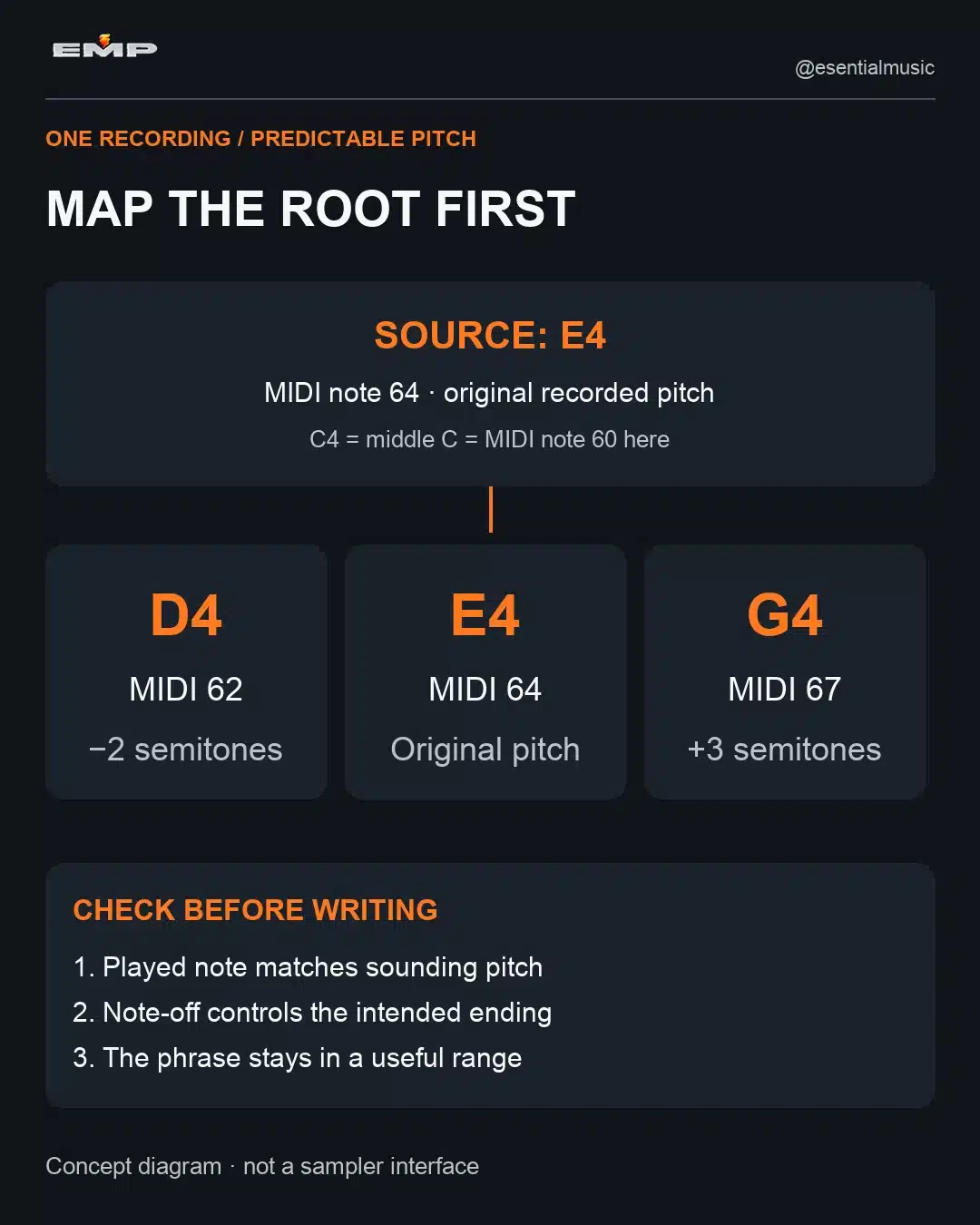
For example, suppose the sample is a clearly tuned E4. In this example C4 is middle C, MIDI note 60, so E4 is MIDI note 64. Assign E4 as its root where your sampler supports root mapping. Playing E4 should reproduce the original pitch; D4 should be two semitones lower; G4 should be three semitones higher.
Octave names vary between DAWs. Use the MIDI note number or a reference pitch to avoid “fixing” an instrument that is only labelled differently. If the sampler has no root selector, adjust its tuning or transpose so the played note and sounding pitch agree, then repeat the same three-note test.
3. Choose triggered playback or a note-controlled envelope
For a short percussion hit, you may want the full recording to play after a brief MIDI trigger. For a melodic part, you may want releasing the key to start the sound’s release stage. Set that behavior deliberately; changing the MIDI note length will not help if the selected mode ignores note-off.
Apple documents this distinction in Quick Sampler’s playback modes: Classic responds to held notes and envelope settings, while One Shot plays from the start marker to the end marker. Names differ between products, so confirm the behavior in the sampler you use rather than choosing a mode because it matches the sample-pack label.
Shape the amplitude envelope around the source
- Attack: keep it short enough to preserve a pluck, or increase it intentionally to soften the onset. If a click appears, examine the sample boundary before masking it with a very slow attack.
- Decay and sustain: control the level after the initial attack. These controls cannot create missing recorded audio once a non-looped file has finished.
- Release: set how the sound fades after note-off when the playback mode supports it. Use enough to avoid an abrupt stop, but not so much that every phrase overlaps the next.
Play a short note followed by a longer note at the same pitch. If their endings are identical, inspect the playback mode, looping and envelope before editing the MIDI again.
4. Understand what transposition does to duration
With conventional unwarped playback, changing pitch changes playback speed. An octave up plays the recording twice as fast and makes it half as long. An octave down plays it at half speed and doubles the duration. The attack and texture change with it.
| Played pitch | Speed ratio | A 1-second source |
|---|---|---|
| One octave below the root | 0.5× | 2 seconds |
| At the root | 1× | 1 second |
| One octave above the root | 2× | 0.5 seconds |
Those relationships assume ordinary rate-based playback with no time-stretching, looping or envelope truncation. Time-stretching can separate pitch from duration, but it changes the processing involved. Ableton’s warping documentation explains that separation and notes practical limitations at demanding settings.
Do not enable stretching automatically. A shorter, brighter high note may be exactly what a plucked hook needs. For a sustained texture, duration independence may matter more. Compare the processed and unprocessed versions inside the intended phrase.
5. Find a useful range instead of forcing all 88 keys
Start near the root and move outward in small steps. At each pitch, listen for a blurred attack, an exaggerated formant-like character, a thin body or a tail that no longer fits the rhythm. Mark the range that sounds useful for this particular part.
You are not obliged to make one recording behave like an entire acoustic instrument. A single guitar note may make an excellent compact hook while sounding implausible several octaves away. That is a source limitation, not a mixing failure. Restrict the melody’s range or select additional recordings for different registers.
A multisample instrument solves a different problem by using multiple mapped recordings. If you are exploring source-engine choices, EMP’s Serum 2 oscillator guide explains the broader Sample/Multisample distinction. The workflow here stays focused on tuning and playing one recording.
6. Add looping only when the sound needs sustain
A short pluck does not need a loop simply because a sampler offers one. For a sustained note, look for a relatively stable section after the attack and before the natural fade. Move the loop boundaries while auditioning a held note, and use a crossfade if the sampler offers it.
A zero crossing can help reduce a boundary discontinuity, but it is not a guarantee of a seamless loop: tone and level also need to match. If you hear a repeating bump or a metallic buzz, adjust the boundaries, length and crossfade. Some sources do not contain a convincing loopable region. Choose another source rather than hiding the problem beneath reverb.
Try this: build a three-note plucked phrase
- Choose an isolated tonal pluck and verify its pitch.
- Set the root mapping and test the root, two semitones below and three above.
- Use note-controlled playback, no loop, a clear attack and a modest release.
- Write one short note, a rest and two answering notes. Keep them near the source’s useful register.
- Change the middle note’s length. Confirm that the sound actually responds.
- Add a little level or tone response to velocity, if available, then save the sampler preset with its source file.
The result is a playable instrument and a musical test phrase—not a claim that one sample can reproduce every articulation of the original instrument.
Before saving: a five-point instrument check
- Pitch: the keyboard note matches the sound you expect.
- Articulation: note-off behaves correctly and short notes do not ring unexpectedly.
- Range: every note in the actual phrase remains useful.
- Polyphony: chords and release tails do not cut off because too few voices are available.
- Recall: the saved project or sampler preset can still find the original audio file.
Once that passes, add effects in context. If several sampled instruments start competing, use the role-based layering guide to give each part a purpose instead of multiplying full-range sounds.
Your next step: build one dependable instrument from one sample, save it, and use it in a short phrase. A small sound you understand is more useful than a folder of untested mappings.