
Installing a Serum bank is simple once you match the method to your version of Serum and the files you received. The reliable workflow is: extract the download, place or import the preset files through Serum, then refresh the browser. This guide covers Serum 1 and Serum 2, plus the fixes that solve most “my presets are missing” problems.
Before You Install: Check the Download
Close the file preview and extract the ZIP or archive first. Serum cannot browse a compressed download as if it were an installed bank. After extraction, look for a clearly named bank folder and inspect its contents before moving anything.
A Serum library may contain preset files, wavetables, noise files or other assets. Keep the supplied folder structure intact. Moving only the preset files while leaving required assets behind can produce missing-resource warnings or patches that sound different from the designer’s version.
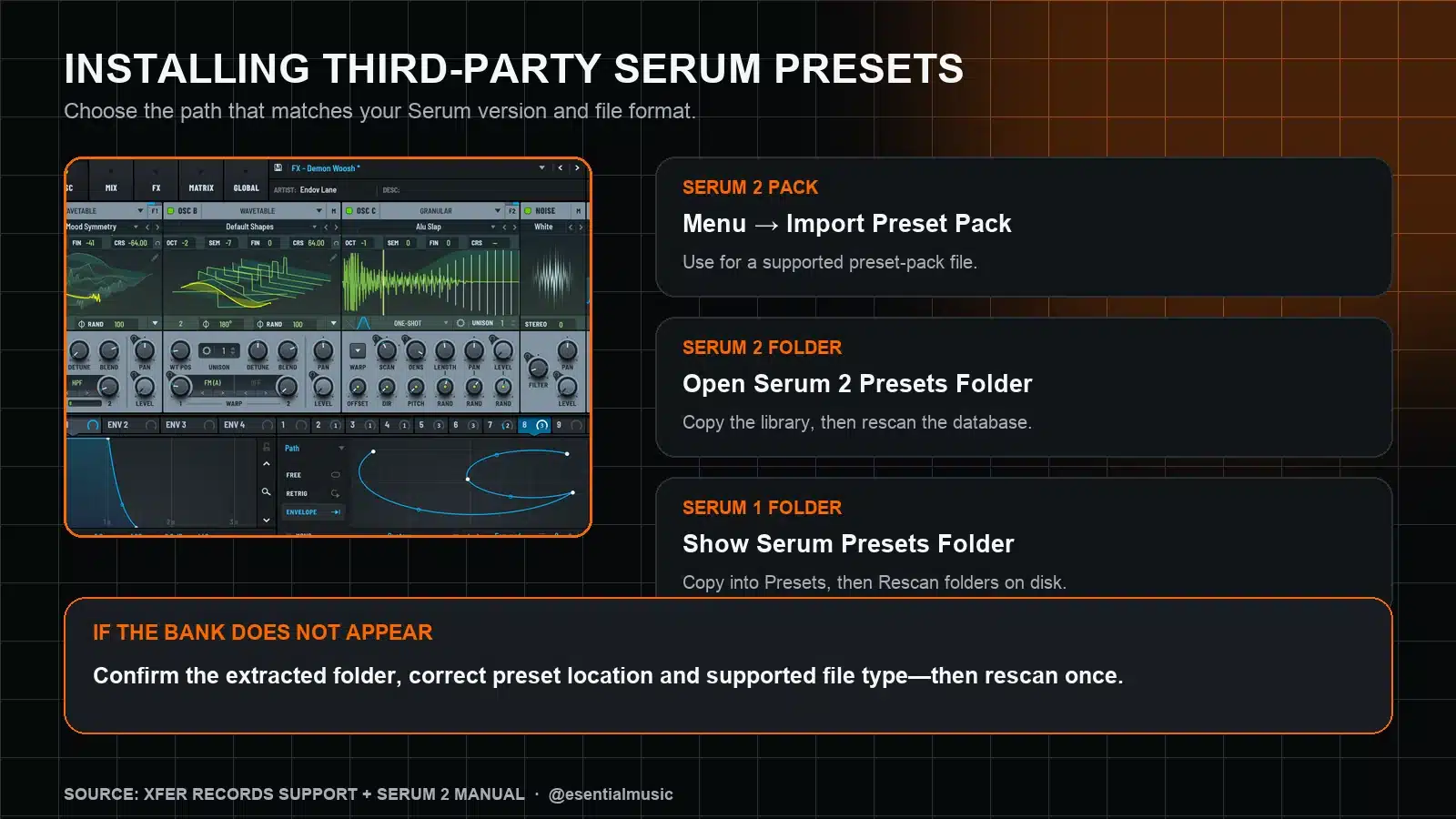
How to Install Presets in Serum 2
Serum 2 provides both an import command and direct access to its library folder. Start with the import route when your download is packaged as a supported preset pack; use the folder route when the seller provides an extracted bank directory.
1. Open Serum 2 and use the main Menu
Load Serum 2 on an instrument track. Open the main Menu in the plug-in and look for Import Preset Pack or Open Serum 2 Presets Folder. These commands point to the library Serum is actually using.
2. Import the pack or copy the extracted bank
If you received a supported preset-pack file, choose Import Preset Pack and select it. For a normal folder, choose Open Serum 2 Presets Folder, then copy the complete bank into the appropriate preset location without changing its internal structure.
3. Refresh Serum 2’s browser
Return to Serum 2 and refresh the library. The current manual exposes Rescan Folders on Disk in the main menu; the preset browser also provides a database rescan from its settings control. Use one rescan after the files are in place.
4. Open a few presets and verify assets
Test patches from different subfolders. If a preset loads but reports a missing wavetable or noise, the bank’s supporting assets may not have been copied with it. Revisit the extracted download and preserve the original directory structure.
How to Install Presets in Serum 1
Xfer’s official Serum 1 support workflow uses the plug-in’s own folder shortcut:
- Open Serum 1 and select Menu → Show Serum Presets Folder.
- Open the Presets directory inside that location.
- Copy the extracted bank folder into Presets. Keep its categories and subfolders intact.
- Return to Serum and choose Menu → Rescan folders on disk.
- Open the preset browser and locate the new bank by its folder or author name.
This method works on macOS and Windows because Serum reveals the active library path for you. You do not need to memorize an operating-system path, and you avoid copying the bank into an unused folder left by another installation.
Serum 1 vs Serum 2: Which Installation Method Should You Use?
| Situation | Best action | Why |
|---|---|---|
| Supported Serum 2 preset-pack file | Serum 2 → Import Preset Pack | Lets Serum handle the package and register it in the current library. |
| Extracted third-party bank folder for Serum 2 | Open Serum 2 Presets Folder, copy, then rescan | Preserves the bank’s supplied structure while using the correct active path. |
| Extracted bank for Serum 1 | Show Serum Presets Folder → Presets, then rescan | Matches Xfer’s documented Serum 1 workflow. |
| Existing Serum 1 library moving to Serum 2 | Confirm compatibility first, then migrate a backup copy | Avoids disrupting active projects and keeps the original library recoverable. |
If you are moving an established library, read the separate guide to Serum 1 preset compatibility in Serum 2 before reorganizing your folders.
Why Your Serum Presets Are Not Showing Up
You copied the ZIP instead of the extracted folder
Extract the archive first. Serum needs access to the preset files and any referenced assets inside the library.
The bank is one folder too deep
Some archives expand into a wrapper folder that contains another folder with the same name. If the browser shows an empty category, inspect the nesting and move the actual bank folder to the expected level—without scattering its contents.
You copied the bank into the wrong Serum library
Multiple Serum installations or migrated computers can leave more than one plausible presets directory. Use the menu command inside the version you are running; do not rely on a path from an old tutorial.
You have not refreshed the browser
After copying the files, run the relevant rescan command once. Repeated rescans cannot fix a wrong folder or unsupported file, so check the location before trying again.
The preset depends on assets you did not install
If the name appears but the sound is incomplete, copy the supporting wavetables, noises or samples supplied with the bank. Follow the bank creator’s readme when it specifies an asset location.
Organize Banks Without Breaking Projects
Create one folder per bank or developer and keep category names stable. Avoid renaming individual preset files after you have used them in projects. For a large move, back up the complete Serum library, migrate a copy, test several important sessions, and only then clean duplicates.
Inside Serum 2, the browser’s categories, search and filtering tools are more useful when the underlying library is tidy. For a deeper explanation of the instrument itself, see the guide to Serum 2’s five oscillator engines.

A library to install and use
Serum Electronic Music Bundle
If you want a broad preset library after your folder workflow is ready, EMP’s Serum Electronic Music Bundle currently includes 1,400 sounds for Serum 1 and Serum 2 across eight electronic genres. The plug-in is not included; use the installation steps above for the supplied banks.
Final Checklist
- Extracted the download before installation.
- Used Serum’s menu to open the active presets folder.
- Kept the bank and its supporting assets together.
- Ran the correct rescan after copying or importing.
- Opened several presets to confirm the library is complete.
- Backed up the previous library before a major migration.
Once those checks pass, the bank is installed. The next useful step is not more folder management—it is tagging a few favourites and using them in a real arrangement.
Primary sources: Xfer Records: importing third-party presets into Serum; official Serum 2 manual; official Serum 2 preset-loading guide.